Showing posts with label IIS. Show all posts

March 03, 2021

Reverse Proxy with IIS ARR (Application Request Routing) and URL Rewrite features

 Dear folks,

Today I am going to explain how we can use the IIS as reverse proxy to secure, redirect the internal application servers.


IIS ARR 3.0 does provide load balancing, cache, forward and reverse proxy features.

This blog will cover the usage of reverse proxy.

Agenda

Secure/Hide the internal servers from public internet requests

Environment Setup

  • DMZ server with IIS ARR and URL Rewrite
  • Internal servers which are accessible to DMZ

Pre-requisites

  1. Make sure the IIS is installed on the server
  2. ARR (Application Request Routing)
  3. URL Rewrite

Procedure

  • Install the pre-requisites
  • Create InBound and OutBound rules to configure as reverse-proxy
  • Edit/Create the web.config based on your requirement
  • Public facing IP - 123.10.1.12
  • Internal IP - 10.1.1.192

Use case 1

  • Redirect URLs with 80 port to internal application server on 8001

<?xml version="1.0" encoding="UTF-8"?>

<configuration>

  <system.webServer>

    <rewrite>

        <rules>

            <rule name="ReverseProxyInboundRule1" stopProcessing="true">

              <match url="(.*)" />

                        <conditions logicalGrouping="MatchAll">

                           <add input="{CACHE_URL}" pattern="^(https?)://" />

                        </conditions> 

      <action type="Redirect" url="{C:1}://10.1.1.192/{R:1}" />

            </rule>

     </rules>

              <outboundRules>

                <rule name="ReverseProxyOutboundRule" preCondition="IsHTML">

                    <match filterByTags="A, Form, Img" pattern="^http(s)?://10.1.1.192/(.*)" />

                   <action type="Rewrite" value="http{R:1}://123.10.1.12/{R:2}" />

                </rule>

               <preConditions>

                 <preCondition name="IsHTML">

                    <add input="{RESPONSE_CONTENT_TYPE}" pattern="^text/html" />

               </preCondition>

              </preConditions>

            </outboundRules>

           </rewrite>

          </system.webServer>

        </configuration>

Use case 2

  • Redirect URLs with 9001 port to internal application server on 8081 with JSON response

<?xml version="1.0" encoding="UTF-8"?>

<configuration>

  <system.webServer>

    <rewrite>

        <rules>

            <rule name="ReverseProxyInboundRule_Port_JSON" stopProcessing="true">

              <match url="(.*)" />

      <conditions logicalGrouping="MatchAll">

                <add input="{CACHE_URL}" pattern="^(https?)://" />

              <add input="{SERVER_PORT}" pattern="9001" />

              </conditions>

              <action type="Redirect" url="http://10.1.1.192:8081/{R:1}" />

            </rule>

    </rules>

              <outboundRules>

                <rule name="ReverseProxyOutboundRule_Port_JSON" preCondition="IsJSON">

                    <match filterByTags="A, Form, Img" pattern="^http(s)?://10.1.1.192:8081/(.*)" />

                   <action type="Rewrite" value="http{R:1}://123.10.1.12:9001/{R:2}" />

                </rule>

               <preConditions>

                 <preCondition name="IsJSON">

                    <add input="{RESPONSE_CONTENT_TYPE}" pattern="^(text|application/json|application/plaintext" />

               </preCondition>

              </preConditions>

            </outboundRules> 

             </rewrite>

          </system.webServer>

        </configuration>

One can make use of the conditions and redirect accordingly

url

use the regular expression to identify the part of the URL to process further

conditions

 Use conditions with attributes to distinguish the URL

action

redirect, rewrite, abort with specific URL with arguments


Hope this helps organization to configure and secure the servers

Request you to send your valuable feedback and comments to psrdotcom@gmail.com


November 10, 2020

Run or deploy Go (Golang) project code in IIS as web server

 Hi folks,

Today we are going to see, how we can run or deploy the Go (Golang) project in IIS.

Development

  1. Create your Golang project with web APIs
  2. Build the Go project
  3. Go build
  4. Result will be an .exe file
  5. Create a web.config file
  6. Update the following content

<?xml version="1.0" encoding="utf-8"?>

<configuration>

    <system.webServer>

        <handlers>

            <add name="aspNetCore" path="*" verb="*" modules="AspNetCoreModule" resourceType="Unspecified" />

        </handlers>

        <aspNetCore processPath=".\<<GoProject>>.exe" />

    </system.webServer>

</configuration>

Deployment 

  1. Place the <<GoProject.exe>> and web.config in IIS server accessible folder.
  2. Open IIS
  3. Create a new website
  4. Enter the web app details with port different from the project internal port
  5. Create or choose pool with .NET CLR version as "No managed code"
  6. The configured website looks like below
  7. After starting the website, user should be able to access the APIs
Hope, this information helps you to deploy the GOlang project in IIS.

 Request you send your feedback and comments to psrdotcom@gmail.com


February 11, 2020

Load balancing with IIS ARR Server Farm

Hi Folks,

I am going explain how can you create a software load balancer with IIS Web Server.
This method is HTTP based load balancing.

Pre-requisites


  1. IIS 7 and above
  2. ARR (Application Request Routing) https://www.iis.net/downloads/microsoft/application-request-routing
  3. Minimum two application servers, preferably running on two different machines

Create ServerFarm


  1. After installing the ARR, you should be able to see "Server Farms" in your IIS Server
  2. Right click on "Server Farms" and select "Create Server Farm"
  3. Give a name to the ServerFarm
  4. You would be navigate to "Add Server" Page
  5. Enter the application server/ip address and click on "Add"
  6. Repeat again to add two or more servers
  7. Check the status of the servers in "Server Address and Status" box
  8. Click on "Ok"

Configure Load Balance


  1. Select the created ServerFarm
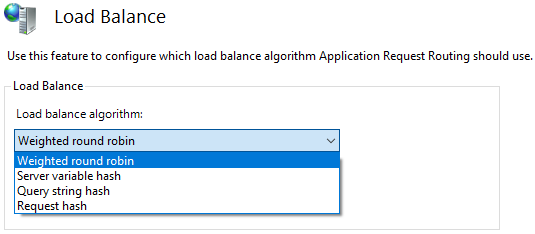
  2. Double click on the "Load Balance" item
  3. Choose the following based on your requirement.
  4. The default configuration as follows
    • Load balance algorithm: Weighted round robin
    • Load distribution: Even distribution


Based on the load balance algorithm, the load distribution options would be changed, if applicable.

Routing Rules Configuration


  1. Select the created ServerFarm
  2. Double click on the "Routing Rules" item

Monitor and Manage the servers

  1. Select the created ServerFarm
  2. Double click on the "Monitor and Management" item

Restart IIS

Once you have completed all the steps, perform the following to make sure everything is in sync.
  1. Open powershell in administrator mode
  2. Run the following commands
    1. net stop was /y
    2. net start w3svc


Please send your feedback and comments to psrdotcom@gmail.com

Deploy or Host ASP.NET Core web application in IIS

Dear folks,

Today I am going to explain the process of deploying the ASP.NET Core web application in IIS (Internet Information Services) web server.

Pre-requsites


Application configuration

To make sure the application deploys and works with IIS, you should add the following while creating the web host.

WebHost.CreateDefaultBuilder(args)
                   .UseKestrel()
                   .UseIISIntegration()
                   .UseStartup();
 Where Kestrel hosts the application and IIS will be acting as a reverse proxy.

Publish the application

After doing the changes, publish the application to a folder as self-contained as you no need to bother about the server for all the application dependencies.

Web Configuration


  • In Web.config, remove the following content
    • hosting="In Progress"
  • Copy files to IIS location
  • Create a website folder in IIS wwwroot folder
  • Copy the publish folder to the website folder
  • Example: C:\inetpub\wwwroot\website

IIS Application Pool


  • Create an application pool in IIS with following configuration
    • Name:
    • .NET CLR version: No Managed Code
    • Managed pipeline mode: Integrated


Website Configuration

  • Right click on the website and select "Add Application"
  • Give the following details
    • Alias:
    • Application Pool: Select above created application pool from list
    • Physical path: Select the above created website path
      • Example: C:\inetpub\wwwroot\website

Restart IIS

  • Once you have completed all the steps, perform the following to make sure everything is in sync.
  • Open powershell in administrator mode
  • Run the following commands
    1. net stop was /y
    2. net start w3svc

Test

Browse to the URL, you should be able to get the web pages.

Please send your valuable feedback and comments to psrdotcom@gmail.com


Featured Post

Java Introdcution

Please send your review and feedback to psrdotcom@gmail.com