Showing posts with label Web. Show all posts

November 10, 2020

Run or deploy Go (Golang) project code in IIS as web server

 Hi folks,

Today we are going to see, how we can run or deploy the Go (Golang) project in IIS.

Development

  1. Create your Golang project with web APIs
  2. Build the Go project
  3. Go build
  4. Result will be an .exe file
  5. Create a web.config file
  6. Update the following content

<?xml version="1.0" encoding="utf-8"?>

<configuration>

    <system.webServer>

        <handlers>

            <add name="aspNetCore" path="*" verb="*" modules="AspNetCoreModule" resourceType="Unspecified" />

        </handlers>

        <aspNetCore processPath=".\<<GoProject>>.exe" />

    </system.webServer>

</configuration>

Deployment 

  1. Place the <<GoProject.exe>> and web.config in IIS server accessible folder.
  2. Open IIS
  3. Create a new website
  4. Enter the web app details with port different from the project internal port
  5. Create or choose pool with .NET CLR version as "No managed code"
  6. The configured website looks like below
  7. After starting the website, user should be able to access the APIs
Hope, this information helps you to deploy the GOlang project in IIS.

 Request you send your feedback and comments to psrdotcom@gmail.com


February 19, 2020

Nginx Load Balancing Configuration

Hi folks,

I am going to explain the process of load balancing the web application using Nginx

Pre-requisites


  • One machine with Nginx installation
  • Two machines with running the same web application

Test setup

All are Ubuntu server machines

  1. 10.10.1.1 - Load Balancer
  2. 10.10.1.2 - Node 1
  3. 10.10.1.3 - Node 2


Configuration

In the Nginx server machine (10.10.1.1) do the following load balancing configuration


  • Make sure you stop the nginx server if running

$ sudo service nginx stop

  • Edit the nginx.conf file 

$ sudo vi /etc/nginx/nginx.conf

  • Place the following sample content

http {
        upstream testsetup {
        server 10.10.1.2;
        server 10.10.1.3;
}
    server{
        listen 8090;
        server_name testsetup;
        location / {
            proxy_pass http://testsetup;
        }
    }
}

  • Start the Nginx server

$ sudo service nginx start

Load Balancing Test


  1. Access the 10.10.1.1:8090 in the web browser
  2. It will redirect to Node 1 (10.10.1.2)
  3. Refresh/Reload the page, the load balancer redirects to Node 2 (10.10.1.3)

Tip

To differentiate the web server, add a footer with different content (Static IP Address) in your index.html


Please send your comments and feedback to psrdotcom@gmail.com

February 11, 2020

Load balancing with IIS ARR Server Farm

Hi Folks,

I am going explain how can you create a software load balancer with IIS Web Server.
This method is HTTP based load balancing.

Pre-requisites


  1. IIS 7 and above
  2. ARR (Application Request Routing) https://www.iis.net/downloads/microsoft/application-request-routing
  3. Minimum two application servers, preferably running on two different machines

Create ServerFarm


  1. After installing the ARR, you should be able to see "Server Farms" in your IIS Server
  2. Right click on "Server Farms" and select "Create Server Farm"
  3. Give a name to the ServerFarm
  4. You would be navigate to "Add Server" Page
  5. Enter the application server/ip address and click on "Add"
  6. Repeat again to add two or more servers
  7. Check the status of the servers in "Server Address and Status" box
  8. Click on "Ok"

Configure Load Balance


  1. Select the created ServerFarm
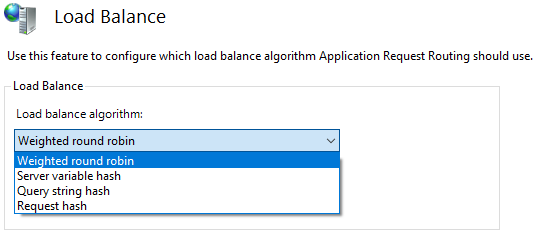
  2. Double click on the "Load Balance" item
  3. Choose the following based on your requirement.
  4. The default configuration as follows
    • Load balance algorithm: Weighted round robin
    • Load distribution: Even distribution


Based on the load balance algorithm, the load distribution options would be changed, if applicable.

Routing Rules Configuration


  1. Select the created ServerFarm
  2. Double click on the "Routing Rules" item

Monitor and Manage the servers

  1. Select the created ServerFarm
  2. Double click on the "Monitor and Management" item

Restart IIS

Once you have completed all the steps, perform the following to make sure everything is in sync.
  1. Open powershell in administrator mode
  2. Run the following commands
    1. net stop was /y
    2. net start w3svc


Please send your feedback and comments to psrdotcom@gmail.com

Deploy or Host ASP.NET Core web application in IIS

Dear folks,

Today I am going to explain the process of deploying the ASP.NET Core web application in IIS (Internet Information Services) web server.

Pre-requsites


Application configuration

To make sure the application deploys and works with IIS, you should add the following while creating the web host.

WebHost.CreateDefaultBuilder(args)
                   .UseKestrel()
                   .UseIISIntegration()
                   .UseStartup();
 Where Kestrel hosts the application and IIS will be acting as a reverse proxy.

Publish the application

After doing the changes, publish the application to a folder as self-contained as you no need to bother about the server for all the application dependencies.

Web Configuration


  • In Web.config, remove the following content
    • hosting="In Progress"
  • Copy files to IIS location
  • Create a website folder in IIS wwwroot folder
  • Copy the publish folder to the website folder
  • Example: C:\inetpub\wwwroot\website

IIS Application Pool


  • Create an application pool in IIS with following configuration
    • Name:
    • .NET CLR version: No Managed Code
    • Managed pipeline mode: Integrated


Website Configuration

  • Right click on the website and select "Add Application"
  • Give the following details
    • Alias:
    • Application Pool: Select above created application pool from list
    • Physical path: Select the above created website path
      • Example: C:\inetpub\wwwroot\website

Restart IIS

  • Once you have completed all the steps, perform the following to make sure everything is in sync.
  • Open powershell in administrator mode
  • Run the following commands
    1. net stop was /y
    2. net start w3svc

Test

Browse to the URL, you should be able to get the web pages.

Please send your valuable feedback and comments to psrdotcom@gmail.com


January 03, 2020

My first WebAssembly program

Hi folks,

Today, I am going to explain how to setup and write a sample program.

WebAssembly enables high performance applications on web pages. WebAssembly natively runs on browser along with HTML, CSS, JavaScript and approved by W3C (World Wide Web Consortium).

To know more about WebAssembly, go through the official webiste https://webassembly.org/

Pre-requisites


  1. Git
  2. CMake
  3. Host system compiler
    • Windows - Visual Studio 2017 +
    • Linux - GCC
    • Mac - XCode
  4. Python 2.7.x
After downloading and installing the pre-requisites, make sure git, cmake and python are accessible in path.

Install

  1. Open Terminal/PowerShell with Admin rights
  2. Get the emsdk files
    • git clone https://github.com/emscripten-core/emsdk.git
  3. Navigate to the downloaded folder emsdk
    • cd emsdk
  4. Install (Note: On PowerShell execute this command, Set-ExecutionPolicy -ExecutionPolicy RemoteSigned -Scope LocalMachine)
    • ./emsdk install latest
  5. Activate
    • ./emsdk activate latest

Create Sample HTML file

  • Create folder
    • mkdir hello
  • Navigate to the folder
    • cd hello
  • Create a file hello.c and place the following code
#include
int main(int argc, char ** argv) { printf("Hello PSR!\n");}

Convert C file to HTML

emcc hello.c -o hello.html

Run WebServer (Optional)

Run emrun webserver to serve the html pages.
emrun --no_browser --port 8080 .
Hope, the tutorial is useful. Happy coding.

Please send your comments and feedback to psrdotcom@gmail.com


February 21, 2012

Check Website Link (URL) for Safe Browsing to Prevent from Malicious Virus Attacks

Hi friends,

I downloaded a software. In "Readme.txt", I found a link and I would like to check how safe the link. Because, I was worried, what if, if I open the link and some virus installed automatically. So, I was searching for checking website URL (link) for safe browsing. I found that every Anti-Virus company got an option to do that.

Here you go and paste your Website URL (Link) for checking the content for safe browsing.

Online Webpage Virus Scanners:


Off-line Webpage Virus Scanners:


How the online webpage scanners works:

You need to copy the URL (Link) which you want to test for safe browsing.
Paste the URL (Link) in any of the online webpage scanners, and click on "Check" button if available or Press "Enter (Return)" button.
You will get the website (page) test report.
In some online webpage scanners, they have categorized the sites into groups and displaying that group.

Test Results:

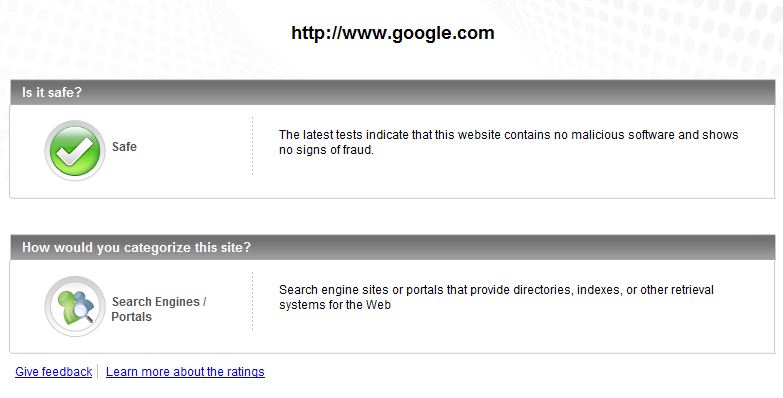
I have tested one of best webpage in the world google.com and one infected site [1] orgsite.info

You can see the results of different online webpage scanners below

AVG Online Webpage Scanner:

Google Webpage Result

orgsite.info Webpage Result

Norton Online Webpage Scanner:

Google Webpage Result

orgsite.info Webpage Result:

McAfee Online Webpage Scanner:

Google Webpage Result:

orgsite.info Webpage Result:


TrendMicro Online Webpage Scanner:

Google Webpage Result:

orgsite.info Webpage Result:


By these links, whenever you are having a doubt about newly visiting URL (Link), you can always check browse the content

References:

Featured Post

Java Introdcution

Please send your review and feedback to psrdotcom@gmail.com