Showing posts with label Link. Show all posts

November 27, 2015

Creating Symbolic Link (Symlink) in Windows 7

Hi friends,

In Linux, it is easy to create symbolic link (symlink) with "ln" command.
But what about in windows?

I found one GUI and command for creating the symbolic links in windows.

Pre-requisites

  1. Visual Studio 2005 redistributable
  2. Link Shell Extension
  3. Download the above executables from here based on OS and system architecture
  4. For Windows 7 64-bit, I have downloaded the following highlighted in black box

Procedure

  • Install the Visual Studio 2005 redistributable
  • Install Link Shell Extension
  • You should be able to see an option in context menu
  • Select the file/folder
  • Right click and select the option "Pick Link Source"

  • Now, the file is been picked
  • Navigate to go the destination folder where you want to create the symbolic link
  • Right click on the empty space of the folder
  • Select Drop As and select "Hardlink or Symbolic Link" based on your requirement


  • You should be able to see the file type as .symlink


References

http://www.howtogeek.com/howto/16226/complete-guide-to-symbolic-links-symlinks-on-windows-or-linux/

Please send your feedback and comments to psrdotcom@gmail.com

February 21, 2012

Check Website Link (URL) for Safe Browsing to Prevent from Malicious Virus Attacks

Hi friends,

I downloaded a software. In "Readme.txt", I found a link and I would like to check how safe the link. Because, I was worried, what if, if I open the link and some virus installed automatically. So, I was searching for checking website URL (link) for safe browsing. I found that every Anti-Virus company got an option to do that.

Here you go and paste your Website URL (Link) for checking the content for safe browsing.

Online Webpage Virus Scanners:


Off-line Webpage Virus Scanners:


How the online webpage scanners works:

You need to copy the URL (Link) which you want to test for safe browsing.
Paste the URL (Link) in any of the online webpage scanners, and click on "Check" button if available or Press "Enter (Return)" button.
You will get the website (page) test report.
In some online webpage scanners, they have categorized the sites into groups and displaying that group.

Test Results:

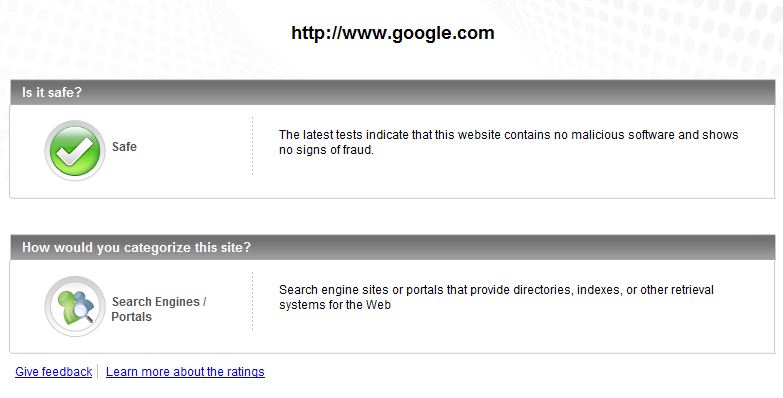
I have tested one of best webpage in the world google.com and one infected site [1] orgsite.info

You can see the results of different online webpage scanners below

AVG Online Webpage Scanner:

Google Webpage Result

orgsite.info Webpage Result

Norton Online Webpage Scanner:

Google Webpage Result

orgsite.info Webpage Result:

McAfee Online Webpage Scanner:

Google Webpage Result:

orgsite.info Webpage Result:


TrendMicro Online Webpage Scanner:

Google Webpage Result:

orgsite.info Webpage Result:


By these links, whenever you are having a doubt about newly visiting URL (Link), you can always check browse the content

References:

December 30, 2011

Eclipse C C++ CDT Plugin Download and Installation with Link or Location Problem Solution

Hi all,

If you are using Eclipse with Java or any other platform and you are planning to install the C/C++(CDT) Plugin then please follow the steps.

Installation Steps:
  • In Eclipse, Click the Help->"Install New Software"
  • You will get a Install named window
  • Click "Add" button
  • Please remove the dot(.) at the end while adding the CDT Plugin location from the link.
  • In "Install" Window, "Work with" textbox, please type the CDT and you will prompted with different options, Select the desired option and click/hit "Enter/Return" button.
  • It will show the similar kind of screen as shown below
  • You can select the all/desired tools to download
  • Please "Restart Eclipse" to complete the CDT Plugin installation for Eclipse
  • Now you can develop your C/C++ applications with Eclipse

Happy Coding ..


For further queries, please mail to psrdotcom@gmail.com

Featured Post

Java Introdcution

Please send your review and feedback to psrdotcom@gmail.com