Showing posts with label Page. Show all posts

September 05, 2024

Github pages not deploying of a static website

 Hello all,


It's been a long time since I have posted a blog.

But I am trying to come up with the passion of rewriting the blogs.

Here are the recent issues and solutions that I have faced.

Problem

I have my website https://pillisureshraju.in/ hosted on GitHub using GitHub Pages.

I have recently updated one of the pages https://pillisureshraju.in/cv but the GitHub deployment is not triggered.

I have searched and configured the GitHub with the environment and selected the branch for auto-deployment.

Environment


Solution

Update index.html and commit to GitHub with a PR to master.

Finally, I am able to see that the deployment is auto-triggered, and the website is live now.


Feel free to reach out on psrdotcom@gmail.com or leave a comment on this blog.

February 11, 2020

Deploy or Host ASP.NET Core web application in IIS

Dear folks,

Today I am going to explain the process of deploying the ASP.NET Core web application in IIS (Internet Information Services) web server.

Pre-requsites


Application configuration

To make sure the application deploys and works with IIS, you should add the following while creating the web host.

WebHost.CreateDefaultBuilder(args)
                   .UseKestrel()
                   .UseIISIntegration()
                   .UseStartup();
 Where Kestrel hosts the application and IIS will be acting as a reverse proxy.

Publish the application

After doing the changes, publish the application to a folder as self-contained as you no need to bother about the server for all the application dependencies.

Web Configuration


  • In Web.config, remove the following content
    • hosting="In Progress"
  • Copy files to IIS location
  • Create a website folder in IIS wwwroot folder
  • Copy the publish folder to the website folder
  • Example: C:\inetpub\wwwroot\website

IIS Application Pool


  • Create an application pool in IIS with following configuration
    • Name:
    • .NET CLR version: No Managed Code
    • Managed pipeline mode: Integrated


Website Configuration

  • Right click on the website and select "Add Application"
  • Give the following details
    • Alias:
    • Application Pool: Select above created application pool from list
    • Physical path: Select the above created website path
      • Example: C:\inetpub\wwwroot\website

Restart IIS

  • Once you have completed all the steps, perform the following to make sure everything is in sync.
  • Open powershell in administrator mode
  • Run the following commands
    1. net stop was /y
    2. net start w3svc

Test

Browse to the URL, you should be able to get the web pages.

Please send your valuable feedback and comments to psrdotcom@gmail.com


February 21, 2012

Check Website Link (URL) for Safe Browsing to Prevent from Malicious Virus Attacks

Hi friends,

I downloaded a software. In "Readme.txt", I found a link and I would like to check how safe the link. Because, I was worried, what if, if I open the link and some virus installed automatically. So, I was searching for checking website URL (link) for safe browsing. I found that every Anti-Virus company got an option to do that.

Here you go and paste your Website URL (Link) for checking the content for safe browsing.

Online Webpage Virus Scanners:


Off-line Webpage Virus Scanners:


How the online webpage scanners works:

You need to copy the URL (Link) which you want to test for safe browsing.
Paste the URL (Link) in any of the online webpage scanners, and click on "Check" button if available or Press "Enter (Return)" button.
You will get the website (page) test report.
In some online webpage scanners, they have categorized the sites into groups and displaying that group.

Test Results:

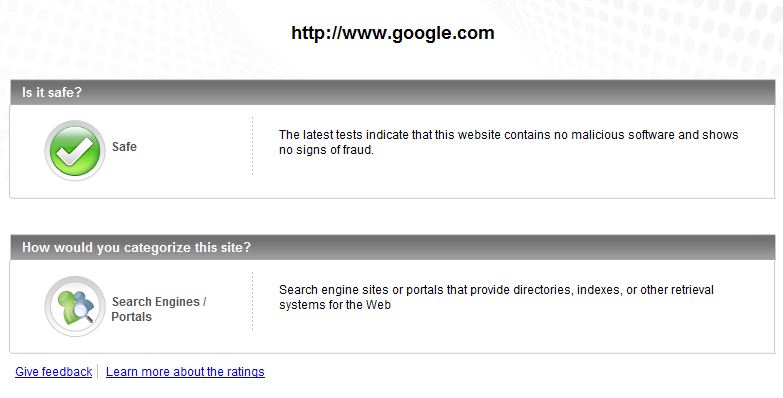
I have tested one of best webpage in the world google.com and one infected site [1] orgsite.info

You can see the results of different online webpage scanners below

AVG Online Webpage Scanner:

Google Webpage Result

orgsite.info Webpage Result

Norton Online Webpage Scanner:

Google Webpage Result

orgsite.info Webpage Result:

McAfee Online Webpage Scanner:

Google Webpage Result:

orgsite.info Webpage Result:


TrendMicro Online Webpage Scanner:

Google Webpage Result:

orgsite.info Webpage Result:


By these links, whenever you are having a doubt about newly visiting URL (Link), you can always check browse the content

References:

July 31, 2008

Change Default Localhost File in Linux

Hi friends,

Whenever you type localhost or 127.0.0.1 in browser, you will be getting some default file.

If you would like to change the default file and wants to put your own desired file then follow this procedure.

  1. Login into Linux as root
  2. Open the terminal
  3. cd etc/httpd/conf
  4. You can see the httpd.conf for configuration of httpd
  5. Place your .html file in /var/www/html
  6. Change the file name as index.html
  7. cd /etc --Change the directory to /etc folder
  8. service httpd start -- For starting the service
  9. service httpd restart -- To restart the service
  10. Now you open the browser
  11. In address bar of the browser type http://localhost/
  12. Now you will get your own html as default localhost
For further queries/comments, please mail to psrdotcom@gmail.com

Featured Post

Java Introdcution

Please send your review and feedback to psrdotcom@gmail.com