March 06, 2020

View docker image file content with folder structure

Hi folks,

I have come across a scenario where I need to see the image contents.

Yes, I want to view the image content with hierarchy.

Then I found this dive, which has done it beautifully.

Install on Ubuntu PC


  1. # wget https://github.com/wagoodman/dive/releases/download/v0.9.2/dive_0.9.2_linux_amd64.deb
  2. # sudo apt install ./dive_0.9.2_linux_amd64.deb

Usage


  • Get the docker images list
    • # docker image list
  • Choose the image which you want to explore by copying the "Repository" name
  • Run the command
    • # dive
  • It takes some time to analyse and display the image contents in hierarchical manner.
  • Of the left side, it will have the image layers
  • Select the appropriate image layer with up/down arrow keys
  • By pressing the "Tab" you will be able to switch to right side view where your files are available
  • Use space to expand/collapse the folder
  • Dive will display each folder size
  • See the sample docker image contents with dive below


  • To quit/exit from the dive, use Ctrl+C


Hope this is helpful

Please send your feedback and comments to psrdotcom@gmail.com

March 03, 2020

Run local file server with NPM http-server

Hi folks,

Today i'll explian the process of making your folder as a standalone file server.

Objective

Make my folder contents browse over http

Procedure


  • Install Node
  • Install http-server module in node globally
    • npm install -g http-server
  • Open terminal/command-prompt
  • Navigate to your folder
  • Run the following command to start the server
    • http-server .
  • or simply run
    • hs .
  • Run from anywhere with full path of the folder
    • hs C:\FileFolder
  • Starting up http-server, serving .
  • Available on:
    • http://10.10.6.2:8080
    • http://127.0.0.1:8080
    • http://youripaddress:8080
  • Hit CTRL-C to stop the server
  • You should be able to browse your file folder contents with any of the above URLs
Hope you are able to access your file contents over the browser

Tip: Using this approach, you can share your content over intranet/internet with full control over data as read only.

After stopped the server, access to the folder is stopped.

Please send your comments and feedback to psrdotcom@gmail.com

February 19, 2020

Nginx Load Balancing Configuration

Hi folks,

I am going to explain the process of load balancing the web application using Nginx

Pre-requisites


  • One machine with Nginx installation
  • Two machines with running the same web application

Test setup

All are Ubuntu server machines

  1. 10.10.1.1 - Load Balancer
  2. 10.10.1.2 - Node 1
  3. 10.10.1.3 - Node 2


Configuration

In the Nginx server machine (10.10.1.1) do the following load balancing configuration


  • Make sure you stop the nginx server if running

$ sudo service nginx stop

  • Edit the nginx.conf file 

$ sudo vi /etc/nginx/nginx.conf

  • Place the following sample content

http {
        upstream testsetup {
        server 10.10.1.2;
        server 10.10.1.3;
}
    server{
        listen 8090;
        server_name testsetup;
        location / {
            proxy_pass http://testsetup;
        }
    }
}

  • Start the Nginx server

$ sudo service nginx start

Load Balancing Test


  1. Access the 10.10.1.1:8090 in the web browser
  2. It will redirect to Node 1 (10.10.1.2)
  3. Refresh/Reload the page, the load balancer redirects to Node 2 (10.10.1.3)

Tip

To differentiate the web server, add a footer with different content (Static IP Address) in your index.html


Please send your comments and feedback to psrdotcom@gmail.com

February 11, 2020

Load balancing with IIS ARR Server Farm

Hi Folks,

I am going explain how can you create a software load balancer with IIS Web Server.
This method is HTTP based load balancing.

Pre-requisites


  1. IIS 7 and above
  2. ARR (Application Request Routing) https://www.iis.net/downloads/microsoft/application-request-routing
  3. Minimum two application servers, preferably running on two different machines

Create ServerFarm


  1. After installing the ARR, you should be able to see "Server Farms" in your IIS Server
  2. Right click on "Server Farms" and select "Create Server Farm"
  3. Give a name to the ServerFarm
  4. You would be navigate to "Add Server" Page
  5. Enter the application server/ip address and click on "Add"
  6. Repeat again to add two or more servers
  7. Check the status of the servers in "Server Address and Status" box
  8. Click on "Ok"

Configure Load Balance


  1. Select the created ServerFarm
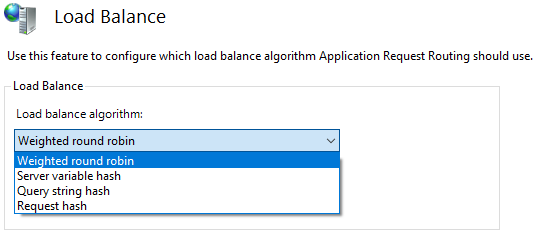
  2. Double click on the "Load Balance" item
  3. Choose the following based on your requirement.
  4. The default configuration as follows
    • Load balance algorithm: Weighted round robin
    • Load distribution: Even distribution


Based on the load balance algorithm, the load distribution options would be changed, if applicable.

Routing Rules Configuration


  1. Select the created ServerFarm
  2. Double click on the "Routing Rules" item

Monitor and Manage the servers

  1. Select the created ServerFarm
  2. Double click on the "Monitor and Management" item

Restart IIS

Once you have completed all the steps, perform the following to make sure everything is in sync.
  1. Open powershell in administrator mode
  2. Run the following commands
    1. net stop was /y
    2. net start w3svc


Please send your feedback and comments to psrdotcom@gmail.com

Deploy or Host ASP.NET Core web application in IIS

Dear folks,

Today I am going to explain the process of deploying the ASP.NET Core web application in IIS (Internet Information Services) web server.

Pre-requsites


Application configuration

To make sure the application deploys and works with IIS, you should add the following while creating the web host.

WebHost.CreateDefaultBuilder(args)
                   .UseKestrel()
                   .UseIISIntegration()
                   .UseStartup();
 Where Kestrel hosts the application and IIS will be acting as a reverse proxy.

Publish the application

After doing the changes, publish the application to a folder as self-contained as you no need to bother about the server for all the application dependencies.

Web Configuration


  • In Web.config, remove the following content
    • hosting="In Progress"
  • Copy files to IIS location
  • Create a website folder in IIS wwwroot folder
  • Copy the publish folder to the website folder
  • Example: C:\inetpub\wwwroot\website

IIS Application Pool


  • Create an application pool in IIS with following configuration
    • Name:
    • .NET CLR version: No Managed Code
    • Managed pipeline mode: Integrated


Website Configuration

  • Right click on the website and select "Add Application"
  • Give the following details
    • Alias:
    • Application Pool: Select above created application pool from list
    • Physical path: Select the above created website path
      • Example: C:\inetpub\wwwroot\website

Restart IIS

  • Once you have completed all the steps, perform the following to make sure everything is in sync.
  • Open powershell in administrator mode
  • Run the following commands
    1. net stop was /y
    2. net start w3svc

Test

Browse to the URL, you should be able to get the web pages.

Please send your valuable feedback and comments to psrdotcom@gmail.com


January 06, 2020

My first Geo Location program using Leaflet JS

Hi folks,

Today I am going to explain writing an geo location HTML page with Leaflet JS.

You can find my program in my GIST GitHub List

https://gist.github.com/psrdotcom/85c56bc2ffaadb254e63bde2b3b162d5

Procedure


  • Make the empty HTML page with HTML, HEAD, BODY tags
  • Place the CSS link first in HEAD tag
    • "https://unpkg.com/leaflet@1.6.0/dist/leaflet.css"
  • After CSS, paste the Leaflet JS file reference
    • "https://unpkg.com/leaflet@1.6.0/dist/leaflet.js"
  • In BODY, create a DIV tag specifying the ID attribute and height and width style attributes
    • id="mapid" style="width: 600px; height: 400px;"
  • Get lat (Latitude) and long (Longitude) of your own choice of location.
  • Take latlong reference from https://www.mapcoordinates.net/en
  • Use map setView to set the location with latlong and zoom level
    • var mymap = L.map('mapid').setView([17.496380,78.393175], 15);
  • Make a marker with popup using marker and bindPopup functions
    • var marker = L.marker([17.496380,78.393175]).addTo(mymap);
    • marker.bindPopup("Hello !! This is JNTU, Hyderabad, India campus.").openPopup();
  • Open your HTML page in any compatible browser
  • You should be able to view your map with specified location and control the map with zoom out and zoom in capabilities.
Please send your feedback and comments to psrdotcom@gmail.com
January 03, 2020

My first WebAssembly program

Hi folks,

Today, I am going to explain how to setup and write a sample program.

WebAssembly enables high performance applications on web pages. WebAssembly natively runs on browser along with HTML, CSS, JavaScript and approved by W3C (World Wide Web Consortium).

To know more about WebAssembly, go through the official webiste https://webassembly.org/

Pre-requisites


  1. Git
  2. CMake
  3. Host system compiler
    • Windows - Visual Studio 2017 +
    • Linux - GCC
    • Mac - XCode
  4. Python 2.7.x
After downloading and installing the pre-requisites, make sure git, cmake and python are accessible in path.

Install

  1. Open Terminal/PowerShell with Admin rights
  2. Get the emsdk files
    • git clone https://github.com/emscripten-core/emsdk.git
  3. Navigate to the downloaded folder emsdk
    • cd emsdk
  4. Install (Note: On PowerShell execute this command, Set-ExecutionPolicy -ExecutionPolicy RemoteSigned -Scope LocalMachine)
    • ./emsdk install latest
  5. Activate
    • ./emsdk activate latest

Create Sample HTML file

  • Create folder
    • mkdir hello
  • Navigate to the folder
    • cd hello
  • Create a file hello.c and place the following code
#include
int main(int argc, char ** argv) { printf("Hello PSR!\n");}

Convert C file to HTML

emcc hello.c -o hello.html

Run WebServer (Optional)

Run emrun webserver to serve the html pages.
emrun --no_browser --port 8080 .
Hope, the tutorial is useful. Happy coding.

Please send your comments and feedback to psrdotcom@gmail.com


Featured Post

Java Introdcution

Please send your review and feedback to psrdotcom@gmail.com